
Tree View is a Table section that allows App Admins to display work items in a structured, expandable hierarchy within a single table. It supports a top-down view of parent, child, and associated items, making it easier to understand how work is organized and connected across a solution. Column data is displayed consistently across row types where attributes exist, enabling users to review progress, identify delays, and analyze how execution-level work rolls up to broader objectives. Tree View helps simplify the configuration and analysis of complex, hierarchical solutions.
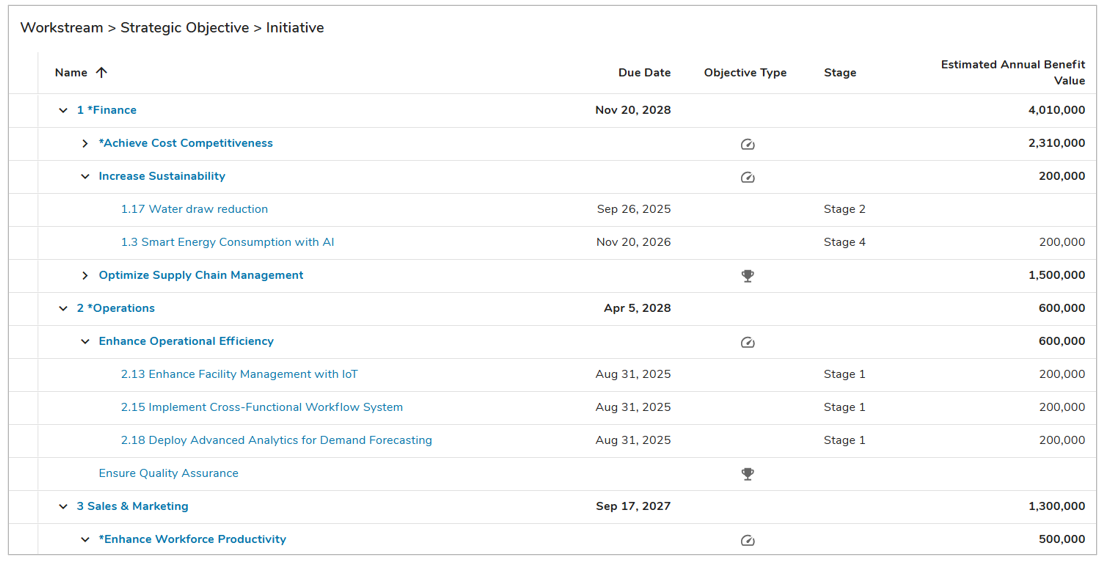
Tables will be paginated when they’re set to Fixed Height and will have virtual scrolling when they’re Fit to Window (default), more information on these settings can be found in the Height Settings article. Tables can also be configured to show a single line-height of data, or 2, 3, or 4 line-height for each row.
Adding a Tree View Table
- On a layout in Configure mode, open the Add Section dialog.
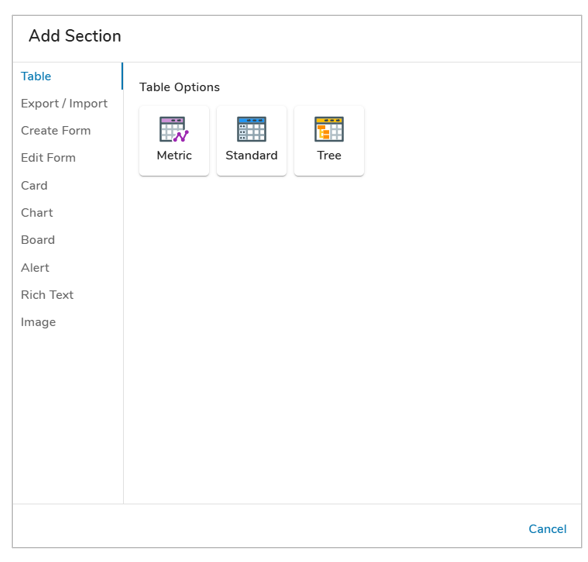
- Select the Table option from the left panel.
- Click on the Tree View icon.
- The Tree View Table will be added to the layout.
Configuring Tree View Table Sections
After successfully creating a new Tree View Table Section, follow the steps below to fully configure your new Tree View Table. These configuration options can be edited on an existing Tree View Table Section via the Settings dialog while in Configure mode on a Layout.
General Tab
- Click on the Settings icon (gear) from the Section Controls of the Tree View.
- Within the Sources section, define the hierarchy for the Tree View. Each source represents a node level in your Tree View. The top node will default to your current Template. To add a node, choose from Direct Children, Descendants, or Associations.
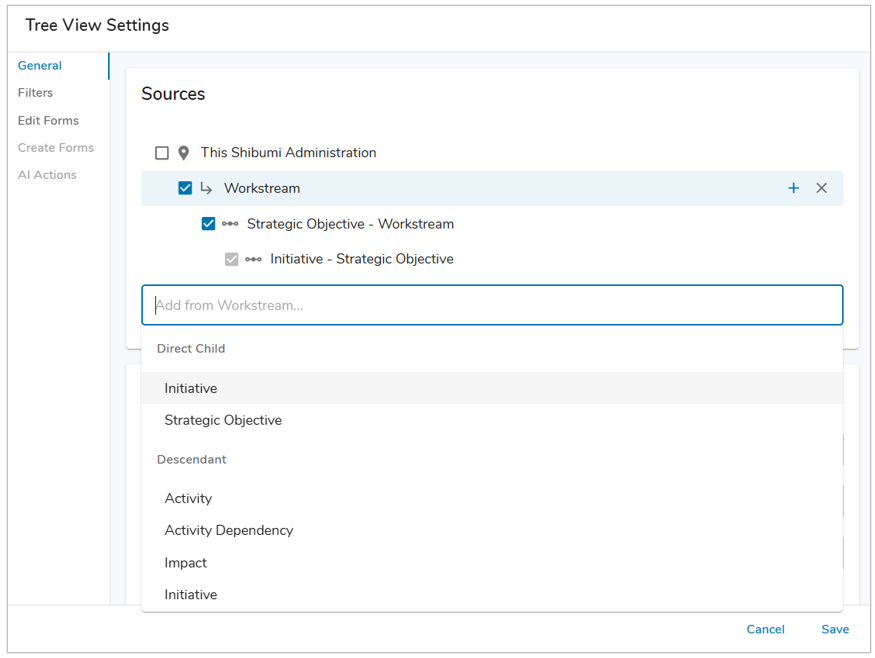
- Once a node has been defined, the available next level nodes are limited based on the selection. For each respective node selected, the list will continue to be limited based on the parent node.
- To add nodes higher up after a hierarchy has been defined, select the respective node and click on the blue ‘+’. This will filter the available options to the selected node.
- To remove/include nodes after they have been added to the heirarchy, toggle the checkbox to the left of the node name.
- Edit Form: This setting enables single-line editing via a Form dialog. Choose between the Default and Custom Form choices via the drop-down menu, or Disable the Edit Form. Selecting Custom Form will enable the Edit Forms tab of this dialog, allowing you to customize a Form for editing.
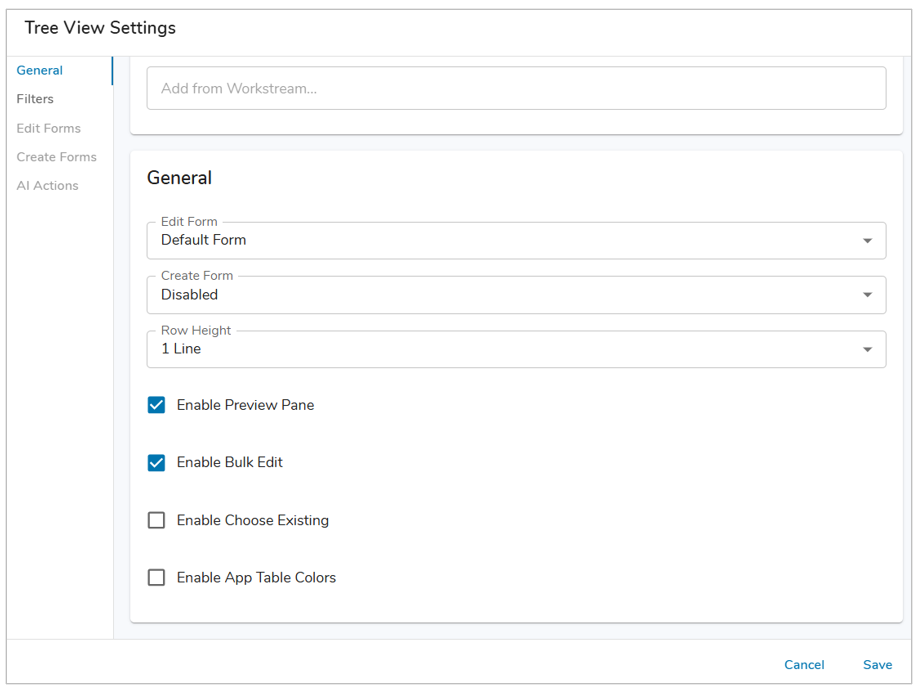
- Create Form: (Optional) Enable Create from Tree View by selecting an option from the drop-down menu. This will display a plus button on the Tree View so users can add new work items. Choose between the Default and Custom Form choices. Selecting Custom Form will enable the Create Forms tab of this dialog, allowing you to customize a Form for editing.
- Row Height: Define the Row Height for the Work Items being displayed in the Tree View, choose from 1-4 Lines. This will apply to all rows in the Tree View consistently.
- Preview Pane: (Optional) Enable or disable the Preview Pane to allow users to preview work items in the Tree View.
- Record Count: (Optional) Enable or disable the Record Count, which displays the total number of records displayed on the Tree View in the bottom right of the section.
- Bulk Edit: (Optional) Enable or disable Bulk Editing for the Tree View. Ideally, Bulk Editing should only be enabled on Tree Views that have been optimized for bulk edit. For example, Calculated and Attachment Attributes cannot be bulk edited making their inclusion in Bulk Edit-enabled Tree Views unnecessary. Additionally, Tree View columns that are grouped will become individual columns in the Bulk Edit Dialog which could impact the size of flexible-width columns. It is recommended to use fixed-width columns to ensure there’s enough space for editing the content.
- Bulk Create: (Optional – only available if Create Forms are enabled) Enable or disable Bulk Creating from the Tree View. The Bulk Create dialog will leverage any fields configured for the work item’s Create Form on the Tree View configuration.
- Choose Existing: (Optional – only available for Associations) Enable Choose Existing in an Tree View to include the ability to associate to an existing work item from the Tree View.
- App Table Colors: (Optional) Enable App Table Colors for the Tree View. The columns will have their respective colors applied from those configured on the App Colors page. For more information regarding Table Colors, please review the Configuring App Colors article.
Filters Tab
Locked filters can be set when configuring a Tree View Table. These filters will apply to all content in the Table and cannot be seen or edited by end users viewing the Tree View Table.
Ex: {!toFilter(today())}, {!toFilter(Program__t.Start_Date__c)}
Additionally, Page filters can be set using the injected expression syntax: {!toFilter(API_Name__f)}. Refer to the Page Filtering article for more details on configuration.
Note: When configuring Filters on a Tree View Table, they need to be defined from the bottom-up. Meaning that the filter configuration must start from the bottom-most template configured in the Tree View Table, this will ensure that work items are not filtered incorrectly.
- Navigate to the Filters tab in the Tree View Table settings dialog.
- Choose the attribute on which to filter from the drop-down menu.
- Enter a value into the Value field. Filtering syntax can be found here.
- Add another filter by clicking Add Filter.
- Remove a filter by clicking the trash icon next to the filter.
Edit Forms Tab
Tree View Table Sections support quick editing via the use of an Edit Form. 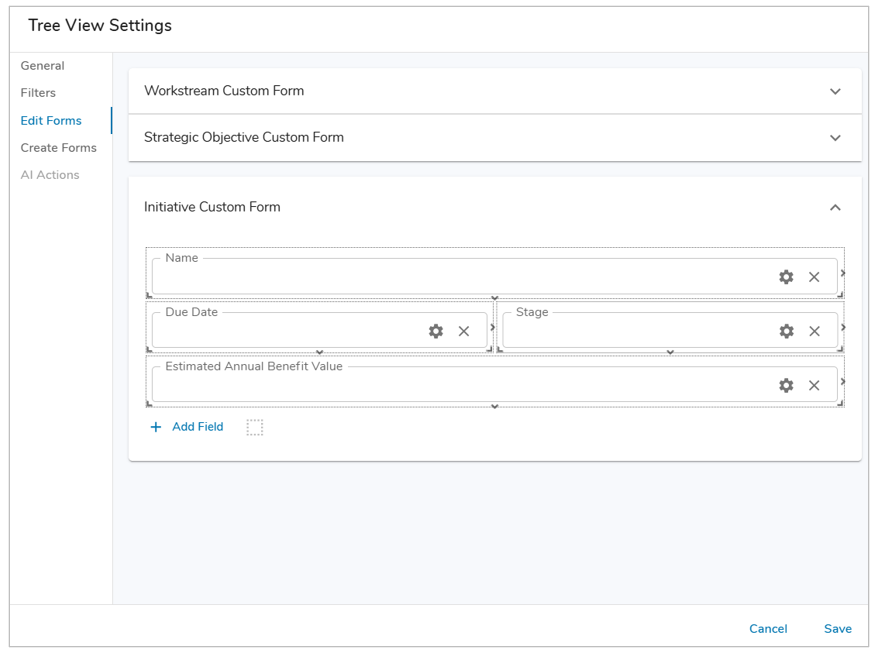
- To enable the Edit Forms tab, select Custom Form from the Edit Form dropdown on the General tab.
- Navigate to the Edit Forms tab to configure a custom edit form. Forms can be configured for each Type included in the Table. See Managing Forms for full configuration options. Once configured to your liking, click Save.
- With an Edit Form configured, you can now edit each Type via the edit icon in the far left column of the Table Section.
Notes:
- Switching between Custom and Default Forms will erase any Custom Forms upon saving.
- Disabling Edit Forms will erase any Custom Forms upon saving.
Create Forms Tab
Tables support creation of new work items via Create Forms. 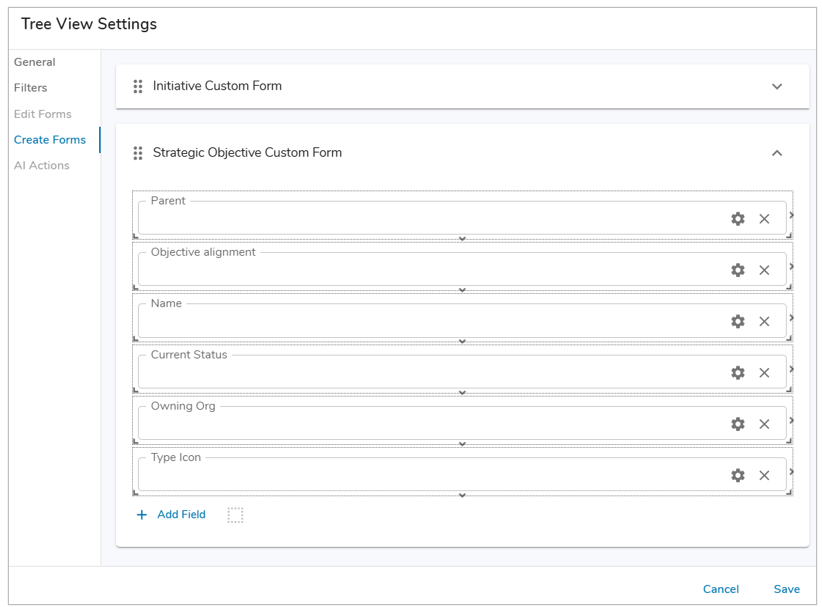
- To enable the Create Forms tab, select Custom Form in the Create Form dropdown on the General Tab.
- Navigate to the Create Forms tab to configure a custom edit form. Forms can be configured for each Type included in the Table. See Managing Forms for full configuration options. Once configured to your liking, click Save.
- With a Create Form configured, you can now create new work items via the plus button in the top-right of the Table Section.
When Create Forms are enabled on a Table, App Admins can utilize this feature to seed descendant content on the Template. However, when seeding content on a template, you cannot define values in association attributes.
Notes:
- The order of Create Form can be adjusted by using the grabber icons in the header of each Create Form.
- Metric columns cannot be included in Create Forms. Additionally, non-editable out-of-the-box attribute columns will not appear in the default Create Form.
- Switching between Custom and Default Forms will erase Custom Forms upon saving.
- Disabling Create Forms will erase Custom Forms upon saving.
- A warning will appear when enabling Create Forms on Association Tables if the association is calculated.
For information on Creating from Tables on an instance, please visit our Utilizing Table Sections article.
AI Actions Tab
The AI Actions tab supports the configuration of the AI: Recommend Content for the Table Section. Selecting the tab will provide a drop down to choose from a configured AI Action. For more information, please visit our AI Actions support article.
Note: The AI Actions tab will only be active if an action has been configured for the template type selected for the Table.
Adding Columns to Tree View Tables
In Tree View Tables, Column data is displayed consistently across row types, so long as the attributes exist. For more information, please visit the Configuring Table Columns article.
Note: If you have defined aggregation within a column on a Tree View, the parent will show the aggregated sub-total value unless the parent has the same attribute.
E.G., Consider a scenario where both Initiatives and Milestones have an Anticipated Benefit attribute. In a Tree View of Initiatives with child Milestones, the grouped Initiative sub-total row would show the Initiative’s Anticipated Benefit attribute value. However, if the Initiative did not have an Anticipated Benefit attribute, the group sub-total would display the aggregation of the descendent Milestone(s) Anticipated Benefit values.