
Copying work items in Shibumi supports efficient program management when multiple similar work items are required. App Admins configure which templates allow work items to be copied and define which attribute values are included during the copy process.
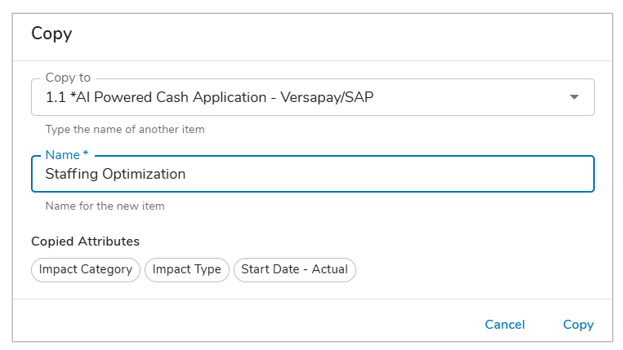
When a work item is copied, only the configured attributes retain their values. Attributes that are not selected as part of the copy configuration have their values cleared in the new work item. This configuration provides App admins with greater control over how information is carried forward, ensuring copied work items maintain the appropriate structure while allowing new data to be intentionally defined.
Enabling a Template for Copy
- As an App Admin, navigate to the Apps page.
- Select the desired app by clicking on the App Name, then navigate to the Copy page.
- From the Copy page, select the ‘+ Enable Template‘ button.

- In the Type drop down of the Add Copy Configuration dialog, select a Template and define which Attributes to include along with their respective Data Sets (if applicable).
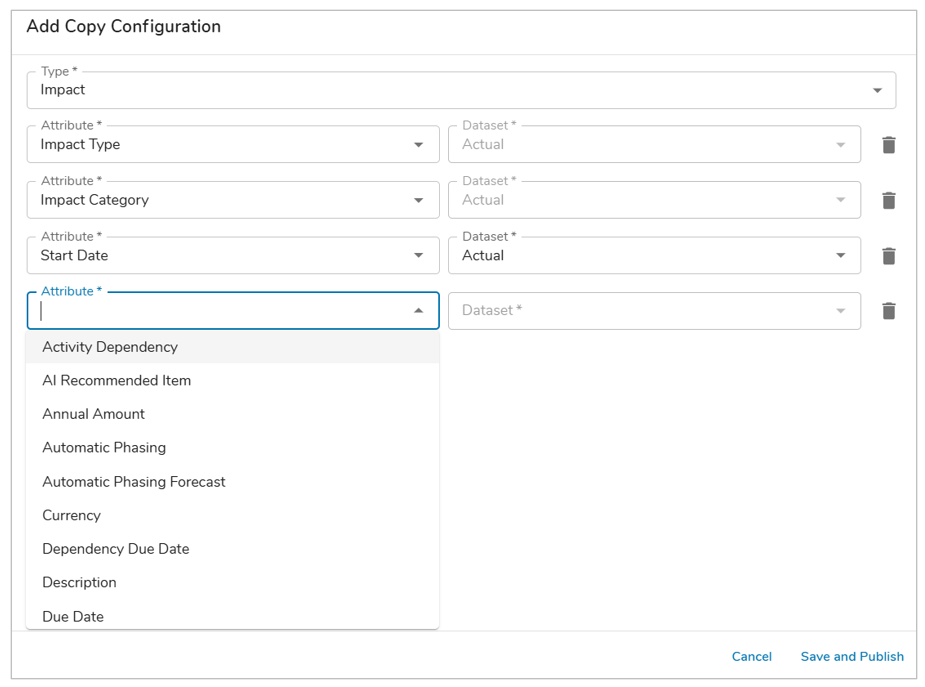
- Save and Publish.
- Repeat this process for additional Templates as desired.
Notes:
- Metric and Calculated Attributes cannot be copied.
- To Edit or Delete an existing Template Copy configuration, select the edit (pencil) or delete (trash) icon, respectively.