
User Groups are a native, app-managed capability that allows App and Operations Admins to define and maintain groups of users directly within the App. Defined Groups can be assigned roles as a whole from the participant window on a work item. Additionally, Groups are fully searchable by group name or individual member, and are supported across sections, expressions, and Business Rules.
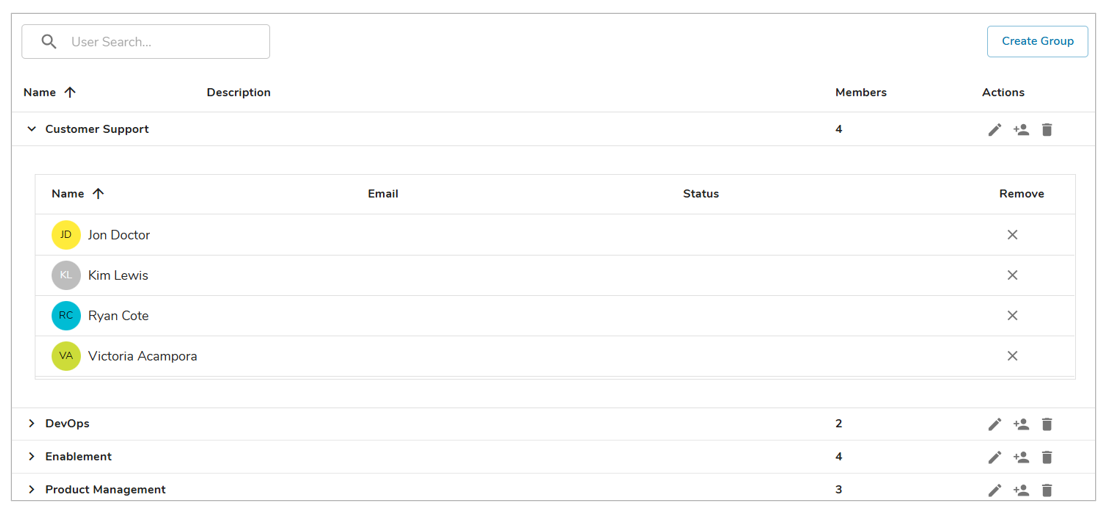
Creating User Groups
- As an Operations/App Admin, open the App Details page and navigate to the Groups tab.
- Select the ‘Create Group’ button, fill out the name and description then select ‘Next’.
- Add members to the Group via the checkbox next to each name, or by adding an entire IdP/SSO Group as seen in the screenshot below, once finished select ‘Create’.
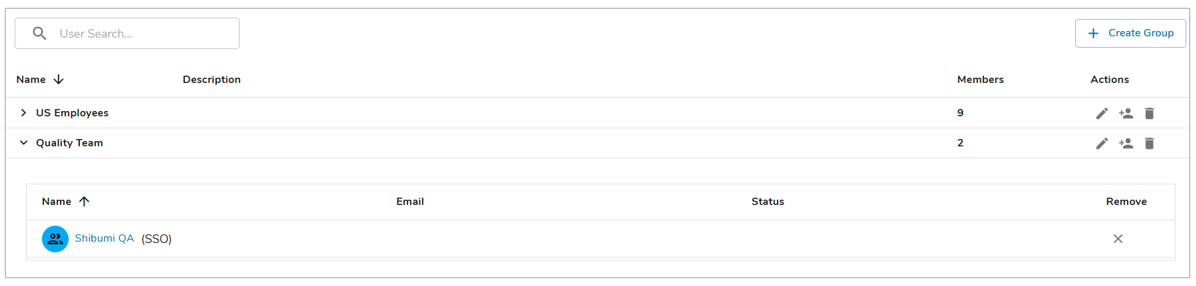
- The new Group will now be visible.
- Once users are added to a group, you can select the ‘X’ in the Remove column to remove them from that particular group.
Note: When an IdP/SSO Group is added to a Custom App Group, the list of users which belong to the IdP/SSO Group can be viewed by selecting the hyperlinked name.
Managing User Groups
Within the Actions column on the Groups tab, Operations/App Admin can manage existing User Groups within the solution.
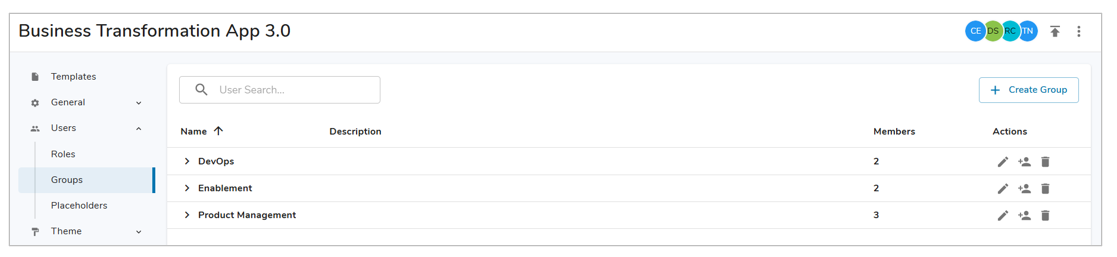
- Edit Group Details: Opening this dialog will allow for the editing of the Group Name, API Name, and Description.
- Add Members: Opening this dialog will present you with a list of all users within the App that are not currently part of this group. Use the same filtering and selecting method used when creating the initial user group to assign additional users to the Group.
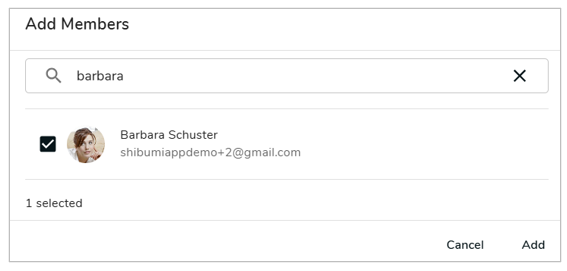
Note: Entering an email address to a User Group of a user not part of Shibumi will send them the registration email to enroll with Shibumi. - Delete Group: Select this icon to delete a User Group, you will be prompted for confirmation before final deletion.