
Overview
The Heatmap chart provides a highly visual option for exploring program data. Enabling a method for quickly undertsanding intensity, concentration, or distribution across intersecting dimensions.
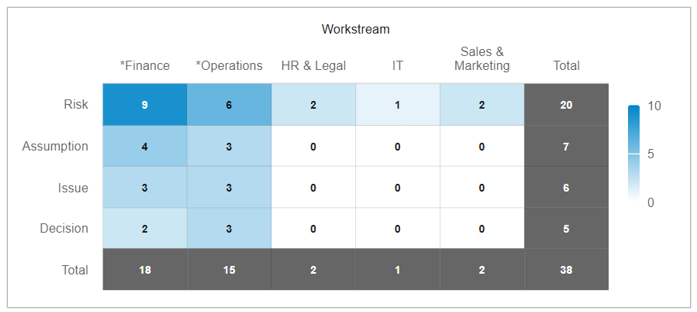
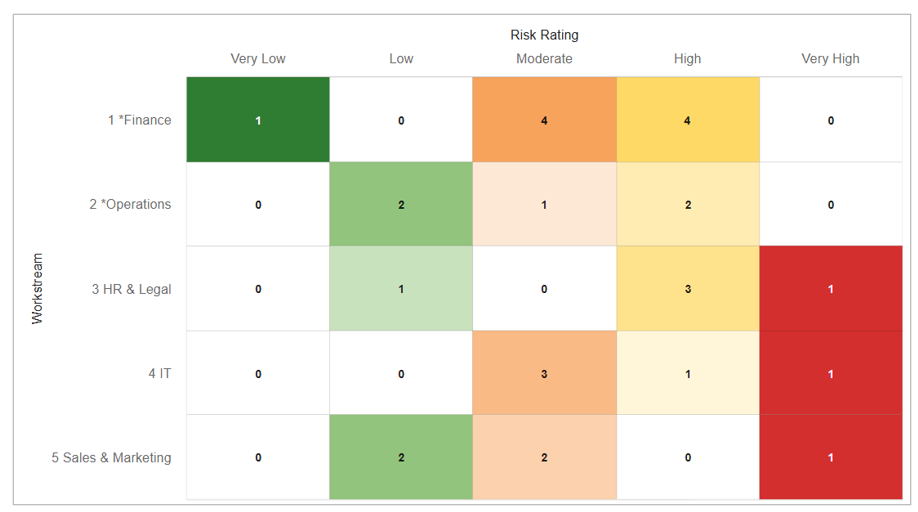
When reviewing charts, you can:
- Hover over any cell in the chart to view the value and respective location on the gradient scale.
- Click on any cell in the chart for a drill down dialog.
- Export your chart as a PNG file by selecting the settings gear on the section and choosing the “Export” option.
- Select the ‘Maximize’ button to make the chart full screen.
Adding a Chart
- On a Layout or Dashboard in Configure mode, open the Add Section dialog.
- Select the Chart option from the left panel.
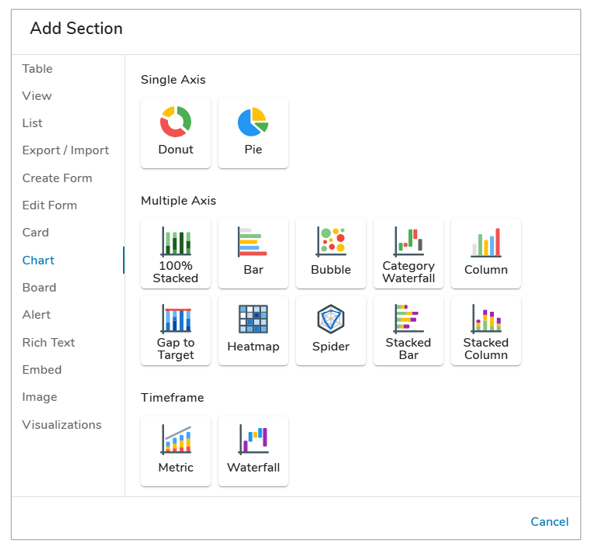
- Choose the Heatmap option under the Multiple Axis category. The chart will be added to the layout.
Configuring Heatmap Chart Settings
After successfully creating a new Chart section, follow the steps below to fully configure the section. These options can be edited on an existing Chart section via the Settings dialog whil in Configure mode on a layout.
Data
- Click on the Settings icon (gear) on the Section Controls of the Chart.
- Define the Datasource: the template(s) where the data is defined. In the Type field, open the drop-down menu to see all available templates. Select one or more templates to define the type.
- Optionally, locked Filters can be set when configuring a Chart section. These filters will apply to all content in the Chart and cannot be seen or edited by end users viewing the Chart. Page Filters can be referenced using the injected expression syntax: {!toFilter(API_Name__f)}. Refer to the Page Filtering article for more details on configuration.
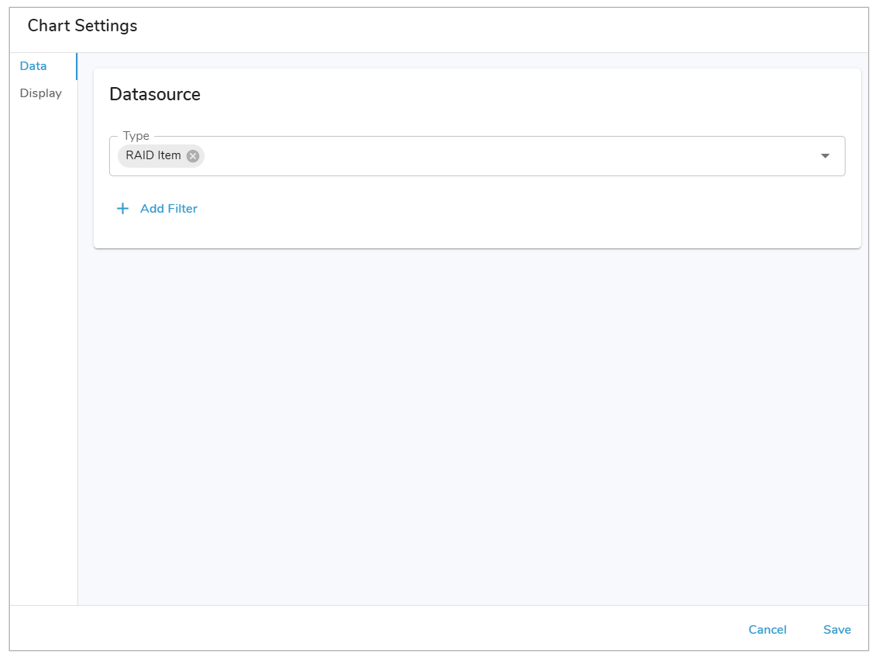
- The Attribute drop-down menu will show attributes from the template(s) type selected. Select an Attribute.
- If the Attribute has Data Sets enabled, define the Data Set. Otherwise, it will default to ‘Actual’.
- Enter a value into the Value field. Filtering syntax can be found here.
- Add another filter by clicking Add Filter.
- Remove a filter by clicking the trash icon next to the filter.
Display
On the Display tab, you can select the values to display, format the values, and configure additional chart display options.
Follow the steps below to configure the Chart Display:
- On the Display Tab, choose from a Pick List or Association for the Value of the X and Y axis, separately. Note: These cannot match.
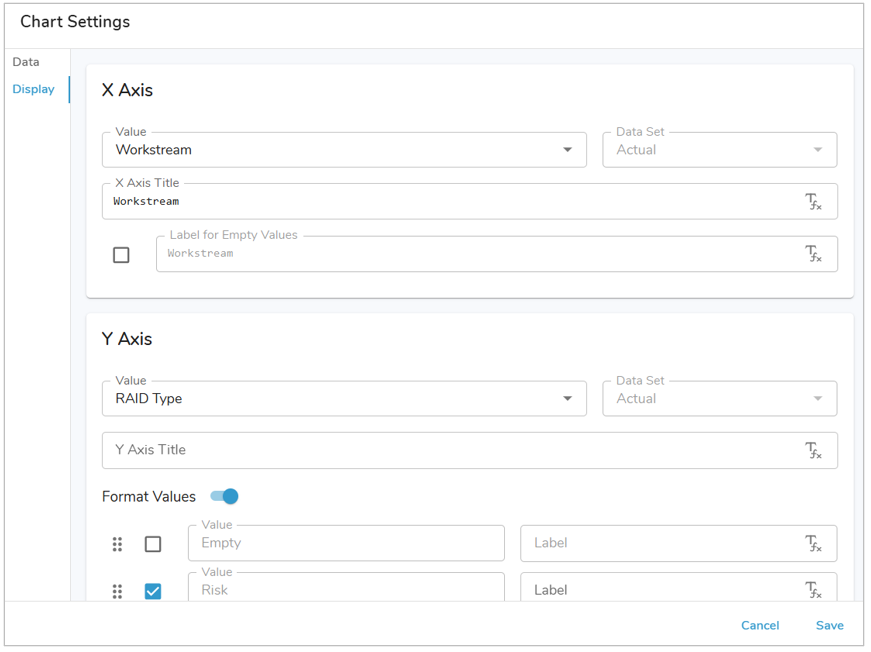
- Optionally, apply labels for empty values or format individual values for each of the X and Y value options.
- Under the Value section, define the type of data that will display in each cell of the chart.
- Attribute Aggregation: Select a Number, Metric, or Value Pick List attribute. Define the aggregation method.
- Record Count: Provides a count of work items.
- In the Options section, define the Style that will be applied to the cells within the chart. Choose from Continuous Gradient, Pick List Gradient – Y Axis, or Pick List Gradient – X Axis.
- Continuous Gradient:
- Define the Starting and Ending Colors for the gradient.
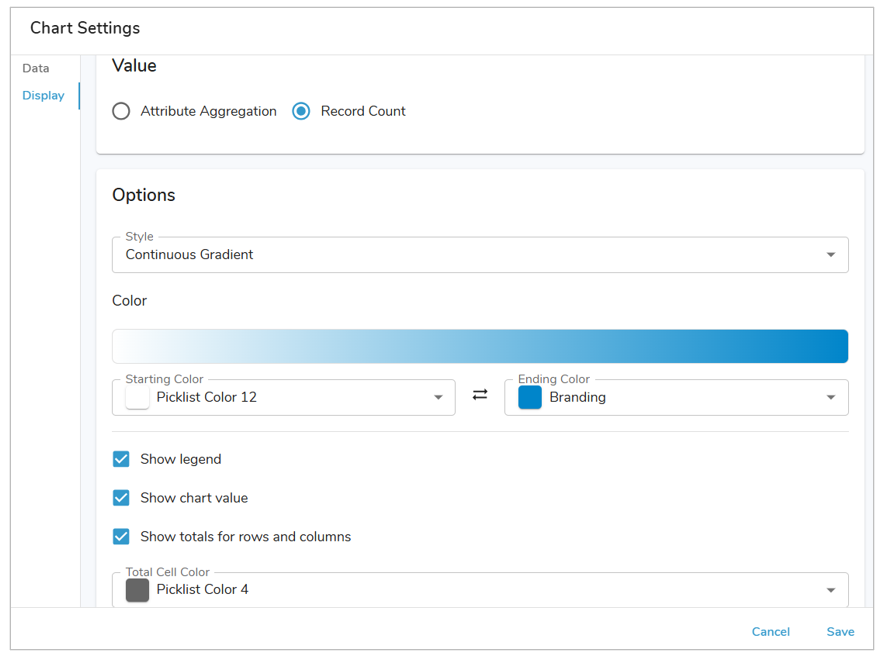
- Define the Starting and Ending Colors for the gradient.
- Pick List Gradient (Y or X Axis): Only available if at least one of the Axis Value’s is a Pick List attribute.
- Define the Starting Color, this is the color that all other pick list value’s colors will apply to.
- Define a Color for each of the pick list values.
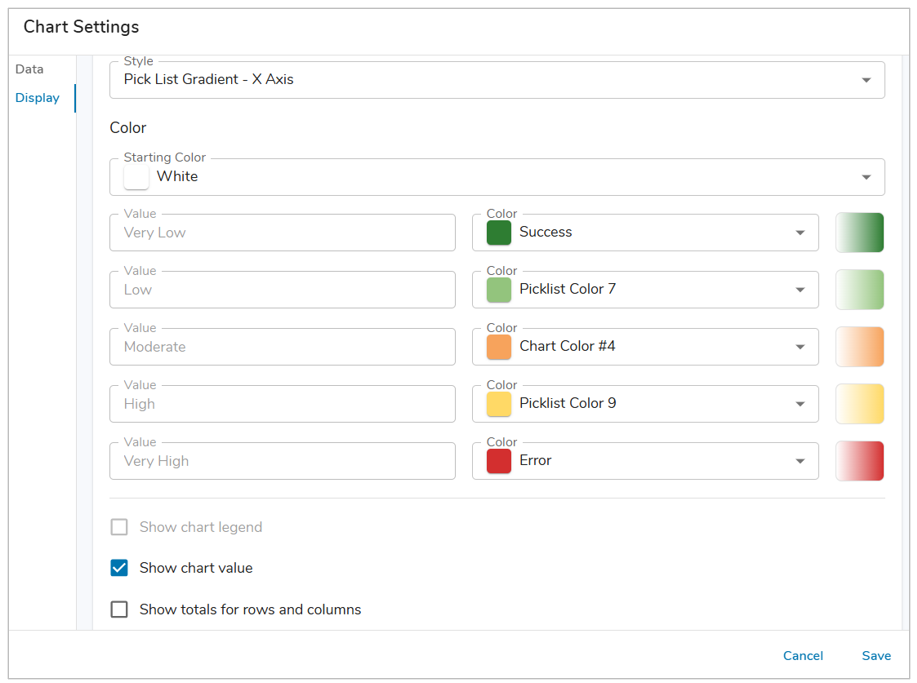
- Continuous Gradient:
- Optionally, select whether to show the legend, chart value, or totals for rows and columns. If Total columns are enabled, define the total cell color and any labels.
- Save and Publish your changes.