
This is a Beta Release feature. Configuration and functionality may be modified before formal release. Print to PDF is a Beta feature due to a known issue in Google Chrome (see note below). Users leveraging Chrome may experience truncated output due to an issue currently being tracked by the Google development team.
Print to PDF allows users to export the content of any Dashboard or Work Item instance as a PDF, with each Tab rendered as a separate page within a single document. This provides a way to share Shibumi content with stakeholders outside the platform, such as during executive reviews, progress updates to stakeholders who are not in the system, or point-in-time snapshot of a program.
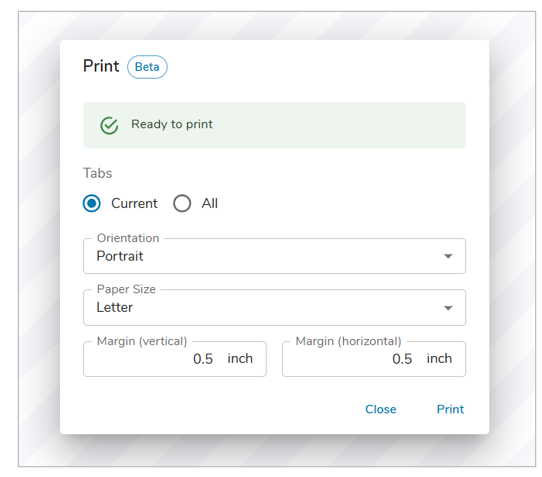
Printing a Dashboard or Work Item
- On a Dashboard or Work Item, select the More Actions button in the top right of the screen.
- Choose the ‘Print (Beta)’ option from the drop down menu.
- Define which Tabs you would like to include in the PDF.
- Note: If you select ‘All’ then each Tab on the Dashboard/Work Item will be displayed as a separate page on the PDF.
- Choose from Landscape or Portrait for the Orientation setting.
- Define the Paper Size (Letter, Legal, A3, A4, A5).
- Optionally, modify the vertical and horizontal margins.
- Select ‘Print’ to open your browser’s print modal. From here you can see a preview of the PDF content and determine whether you save it as a PDF or send it to a printer.
Notes
- Tabs that contain Tables with horizontal scrolling will not Print to PDF successfully when using Google Chrome. If there is a Table with horizontal scrolling on any tab included in the PDF, the PDF output is truncated.
- We recommend leveraging ‘Save to PDF’ if working on Windows machines, rather than ‘Microsoft Save to PDF.’